Integrate with iFirm Client Accounting
CCH Workpapers integrate easily with iFirm Client Accounting. Import GL balances directly from iFirm to enable reconciliation of workpaper balances. Upload journals to iFirm directly from our journal worksheets to save time and increase accuracy.
 1. Setting up your workpaper file to connect to iFirm Client Accounting
-
On the Setup sheet in your CCH Workpapers Excel workbook,
-
select CCH iFirm as your system type
-
enter your iFirm site URL in the CCH iFirm site url field
-
2. Importing GL data from iFirm
-
Click the Import GL Data button in the CCH Workpapers tab in your Excel ribbon
-
If you haven't already done so you will need to connect to iFIrm
-
A browser dialog box will pop up prompting you to sign into iFirm. Follow the prompts to allow the cch workpapers add-in to access your account.
-
-
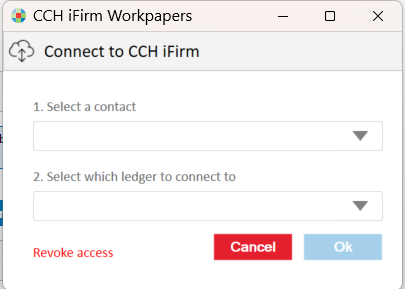
A popup dialog box will appear for contact selection.
-
Select the contact and ledger to import and click Ok
3. Refreshing GL data from iFirm
-
Click the Refresh GL Data button in the CCH Workpapers tab in your Excel ribbon
-
If you have already connected to iFirm the GL data in your workbook will be refreshed
4. Uploading journals to iFirm
-
Click the Upload Journal button in the CCH Workpapers tab in your Excel ribbon
-
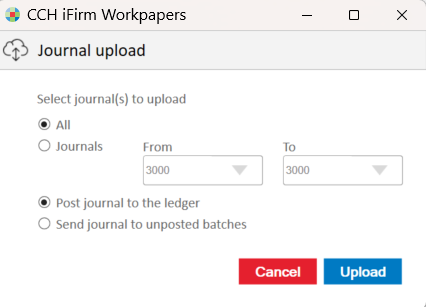
The Journal Upload dialog box will appear
-
Select the journal(s) you wish to upload to iFIrm, whether you want them to posted to the ledger or to unposted batches and click Ok
-
If you have already connected to iFirm, the journals will be uploaded to iFirm. The journal numbers will be shaded to indicate this in your CCH Workpapers journal sheet
5. FAQ
How can I disconnect CCH Workpapers from iFirm?
-
If you wish to revoke access to a particular client from CCH Workpapers, click the Import GL Data button, select the client in the Connect to CCH iFirm dialog box and click the Revoke access link at the bottom of the screen.


